How to batch convert a folder of videos into documents without babysitting it
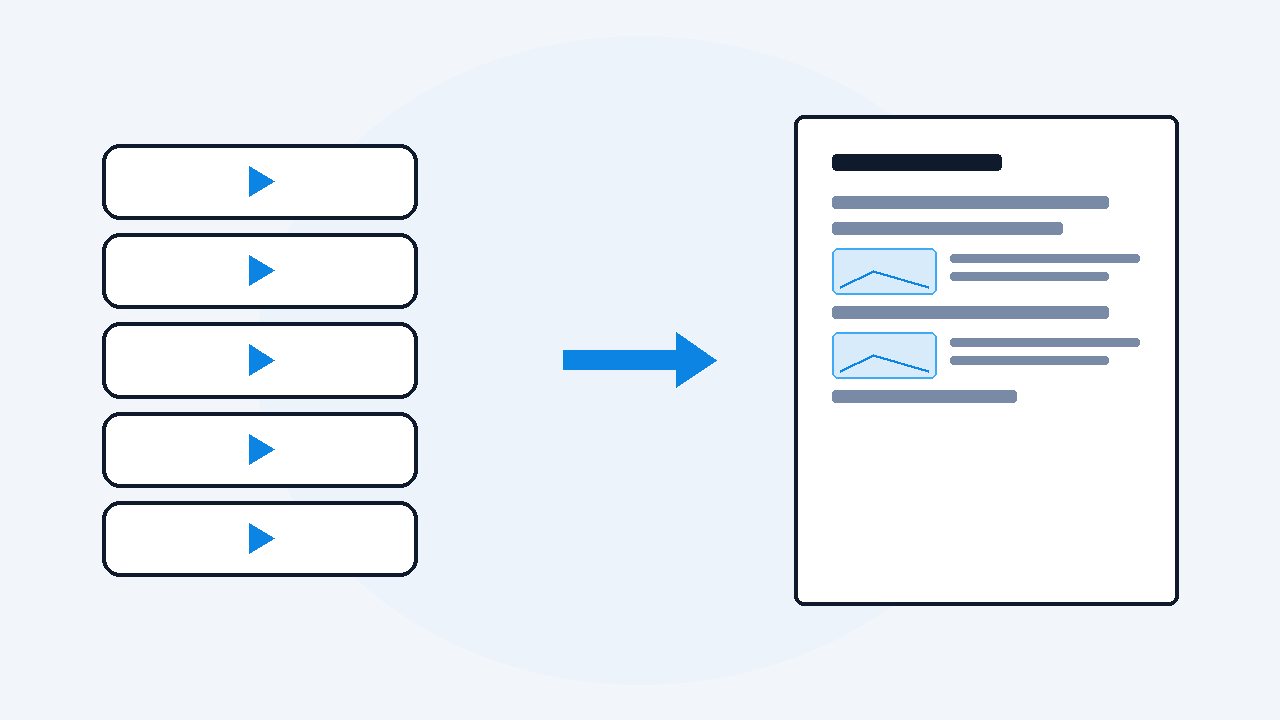
If you want to convert a batch of videos into documents, you load them into a single queue that works on its own. You can use a folder on your drive, paste a list of links, or load a text file full of links. My VideoDoc desktop app processes these files locally on your computer. It creates one document per file or combines them into a single file, skips any video that fails so the rest keep going, and updates a live Excel sheet to track progress.
You might have thirty video files sitting in a folder, or a list of course links saved in a note, and you need each one turned into a document for searching or passing to an AI tool. Doing that one video at a time takes hours of sitting at your desk. It is much easier to load everything at once, click Start, and let the computer handle the work.
Load your entire batch at once, and make sure a broken video skips itself instead of stopping the queue. That simple point is what determines whether you wake up to 30 finished documents or 4. Most batch tools manage good files easily, but you see the real difference when video number five happens to be corrupted.
What is the free way to batch transcribe a folder of videos?
If you only need the plain text and know your way around a command line, OpenAI created a free tool called Whisper that processes batches. Its terminal interface accepts multiple files in one command, so you can point it at a folder. It requires Python and ffmpeg on your system, and the installation instructions are on the Whisper page.
- Open a terminal in the folder that holds your videos.
- On a Mac, run
whisper *.mp4 --model small --output_format txt --output_dir transcripts. - On Windows PowerShell the star is not expanded for you, so run
whisper (Get-ChildItem *.mp4).Name --model small --output_format txt --output_dir transcripts. - Leave it running, and each video gets its own .txt file inside the transcripts folder.
Whisper handles failures well by skipping the bad file and continuing to the next one. The downside is that it only prints an error message in the terminal screen, which scrolls away quickly. You will only notice a missing document later when you count the finished text files.
It also limits itself to spoken words. Because Whisper listens to audio only, any video featuring slides, code, or screen demonstrations turns into text where phrases like "as you can see here" lack all context.
How do I batch convert videos to documents with the screen included?
I built VideoDoc to keep both parts of the recording together, matching the timestamped transcript with screenshots of the screen taken at the right moments. The desktop app accepts batches through three simple methods, and everything runs directly on your computer without uploading data.
- A folder. Select a folder on your drive, and the app turns every video inside into a task. You can generate one document for each video, or join them into one long document.
- A list of links. You can paste a list of web links containing single videos or full playlists, and the software tells you how many of each it found.
- A .txt file of links. Import a plain text file, and the app adds every link inside to the queue, which helps if you collect links over time.
Before starting a batch, you choose the output style, ranging from a quick Text-only file to a Detailed document. Each completed item saves as both a PDF and a Markdown file, so you can open it in ChatGPT, Claude, or your personal notes.
What happens when one video in the batch fails?
I paid extra attention to batch reliability because early versions of my own code failed here. An early build of VideoDoc could hang for an hour trying to merge audio and video tracks on a single file, leaving every queued video behind it stuck. The whole night of processing was lost just because one file got stuck.
I added safety timers to every step of the process. If a task stalls, VideoDoc stops working on that specific video, logs that it skipped the file to save the queue, and starts the next item. You get a Retry button next to any failed task, so you can fix that single file in the morning without re-running the finished ones.
When you choose to make a single combined document, the app saves its progress as it goes. If your system turns off or you close the app early, you do not lose the videos that already finished.
How do I know where the batch stands without watching it?
VideoDoc writes a live Excel file inside your destination folder as it works. It creates a main file called VideoDoc-Tracker for the whole queue, alongside smaller trackers for individual playlists or folders, and updates rows as each video completes.
I made this feature with client projects in mind. If a client gives you a drive filled with training videos, you can hand them the tracker file instead of sending status updates, and they can check which videos are completed.
The main screen includes Pause, Resume, and Cancel buttons for every task. You can select a few items to control them together, or leave everything unselected to control the whole list.
Which way should I use for my batch?
| Your batch | Best way | What you get |
|---|---|---|
| Words only, and you can use a terminal | Whisper on the command line | One .txt per video, free, with failures shown only in the terminal |
| A few short files, no install | An upload transcription site | Words within the site's own file limits, and your videos leave your computer |
| Recordings with slides, code or a screen share | A folder or link list in VideoDoc | A PDF and Markdown per video, or one combined, with the screen as pictures and a tracker |
| One course on YouTube | The playlist link in VideoDoc | One merged document or one per video |
If you only need to process one public YouTube course, using the playlist link is faster, and I wrote a short guide on turning a YouTube playlist into one document.
How do I set up an overnight batch so it actually finishes?
- Keep your computer plugged in and set the operating system sleep timer to Never. A computer that goes to sleep halts your queue no matter which software you run.
- Check your available storage before starting. Text documents take up very little space, but downloading and saving many large video files can fill a hard drive.
- Set your PC power profile to Auto. The app checks your processor and graphics card automatically to select a fast, safe processing speed.
- Process a short sample video first to check the formatting. Once the document looks right, load your entire list and click Start.
Pasted links only work for public web videos, so you must download private or login-protected files to your disk first. Processing time depends on your computer hardware and total video length, so I cannot give an exact time estimate. If you pause an active job, resuming it starts that single video over from the beginning, but completed files remain safe. You need the desktop software for this, as the free browser version is for trying it on a file you already have.
Try it on one file before you load the folder.
Try it free in your browser on a file you already have. Pro is one payment for a lifetime licence on 2 machines, and it runs on Windows and Apple Silicon Macs.
Quick questions
Can I transcribe multiple videos at once for free?
Yes, the free Whisper command line accepts multiple files in a single terminal command and generates a transcript for each one. It extracts only the spoken words, and any file error is only displayed inside the terminal log.
Can VideoDoc convert a whole folder of videos?
Yes, you point the desktop app at a folder on your drive, and it turns each video into a task to make individual files or one combined document. Everything processes locally on your computer.
What happens if one video in a batch fails?
VideoDoc skips the problematic file, records the issue, and moves right to the next item in line. You get a Retry button for that failed video, and the Excel sheet marks which file had an issue.
Are my videos uploaded when I batch convert them?
No, they stay on your system. Local files never leave your machine, and online links are downloaded over your own network connection. All transcription work and frame capture happen locally on your computer.
Pick that folder of video files you have been meaning to read, run a quick test file tonight, and leave the queue running while you sleep.

I am a telecom engineer and business analyst from Pakistan, and I build small honest desktop tools under Designesh. I made VideoDoc because I wanted my AI to read the lectures I study from. Everything here is tested on my own machine first.