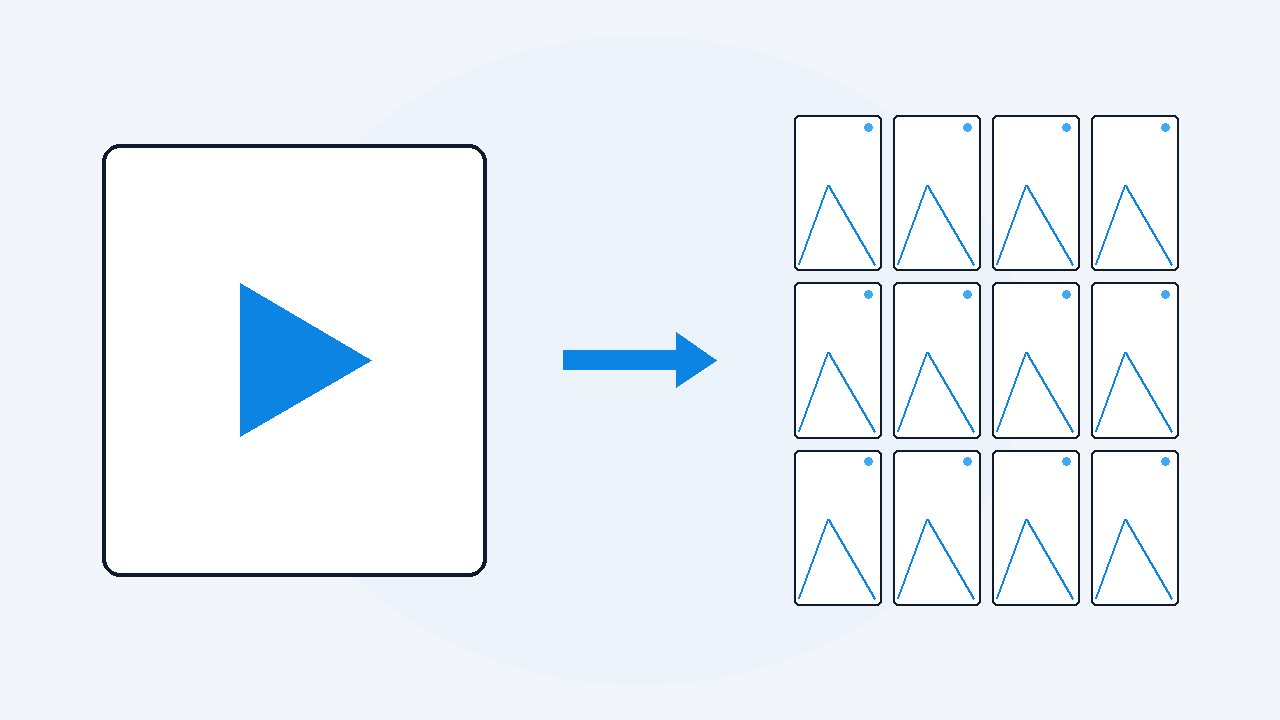
How to extract every frame from a video
For a short clip, a browser tool will do. For a whole video, you want a fixed sampling rate rather than every single frame: VideoDoc saves four images a second, which is close enough together that nothing on screen can appear and vanish between two samples. Identical images in a row are dropped, each file is named with the exact moment it came from, and a CSV lists every one. It runs on your own computer.
- Four frames a second catches everything readable, and an hour of video lands at about 14,400 images instead of over 100,000.
- Only byte-identical neighbours are dropped as duplicates, every file name carries its timestamp, and a CSV indexes the lot.
- It all runs on your own machine, with an optional switch that blacks out faces before the frames go anywhere else.
There are two completely different reasons people ask for this, and the tools you find are almost all built for the first one. The first is: I want one nice still out of this clip, a thumbnail, a freeze frame. The second is: I need everything that appeared on this screen, because I am going to read it, search it, or hand it to an AI.
I built for the second one. The first time I tried to pull a tutorial apart, I used a free online frame grabber, and it gave me a frame every two seconds at 480p. The code in the editor was a grey smudge. Worse, the presenter had flashed a config file for about a second and a half, and it simply was not in any of the images. The tool had not lost it. It had never sampled it.
Why four a second, and not all of them
A normal video runs at 30 frames a second.
- 1 minute is about 240 images.
- 10 minutes is about 2,400.
- 1 hour is about 14,400.
Check: Four a second keeps every readable moment and turns fourteen thousand frames an hour into a folder you can actually open.
Saving all 30 sounds thorough and is mostly waste: 29 of every 30 images are a near copy of the one before, and an hour would be over 100,000 files. Four a second is the number that actually solves the problem. It is fast enough that nothing readable can appear and disappear between two samples, because nothing a human is meant to read stays on screen for less than a quarter of a second.
Those are the numbers before duplicates are removed, and on a slide deck or a screen recording most of them are duplicates.
Dropping duplicates without ever losing a change
This is the part that has to be exactly right, because a dedupe step that is even slightly clever will eventually throw away the one frame you needed.
- VideoDoc compares the raw bytes of the two JPEGs.
- That sounds crude, and it is precisely why it is safe here: every frame comes out of one ffmpeg run at one fixed quality, and JPEG encoding is deterministic and frame-independent.
- Identical pixels in means identical bytes out.
Check: If you want the untouched sequence, there is a switch to keep duplicates.
So different bytes genuinely mean the picture changed, and a change can never be silently discarded.
It also only ever compares against the frame immediately before. A screen that goes A, then B, then back to A keeps both visits to A, because the second A is different from the B that preceded it. A tool that deduped against everything it had already seen would quietly delete your return to the earlier slide.
On a lecture recorded off a slide deck, this typically removes most of the pile. On handheld footage it removes almost nothing, because almost nothing is truly identical.
What you actually get on disk
Every image is named with the moment it came from, so the file name is the index:
frame_000123_00h01m45.50s.jpg: the 123rd saved frame, at 1 minute 45.5 seconds.frames_index.csv: every saved frame with its timestamp, so you can sort, filter, and jump straight back to a moment in the video.README.txt: the source resolution, the sampling rate, and whether dedupe was applied, written at the time of the run.
Check: Frames named by the moment they came from, an index you can sort, and a README that remembers how the run was made.
That last file matters more than it looks. Six months later, a folder of 3,000 JPEGs with no record of how they were made is close to useless as evidence of anything.
Covering faces, when the frames are going somewhere else
Screen recordings usually carry the presenter's webcam bubble in a corner.
- If those frames are going into a shared drive, a dataset, or anywhere a privacy review will look at them, that face is a problem you have to solve before you send them, not after.
- There is a second tick for it.
- Every human face in the saved frames is filled with solid black, not blurred and not cropped, covering the whole webcam cutout it sits in, whatever shape that is.
Check: It runs on your own machine, and when it finishes it tells you both how many faces it covered and how many images had none, so a miss is never silent.
The slides and code underneath are untouched.
This is the heavy option and the app warns you before it starts, because how long it takes depends entirely on your computer. Frames come out as JPEG, not PNG. For screen text at the quality level used that is a difference you will not see, but if you need lossless output this is not the tool. And extracting frames needs the actual video file, so a text-only job that would normally skip the download has to download it.
Getting only the images, without the document
If the pictures are the whole point, you do not need the transcript or the PDF.
- Pick the images-only route and VideoDoc skips transcription entirely, which is the slow part, and writes just the frames folder and its index.
- This is the mode I use most for anything I intend to feed to an AI as pictures rather than as prose.
- Claude and ChatGPT both read images well.
Check: Handing them 200 deduped frames of a screen recording, in order, with timestamps in the file names, gets you further than a transcript ever will when the meaning was on the screen instead of in the audio.
Pull the frames out of one video tonight.
Try the free browser version on a file you already have. When you want the every-frame export, the duplicate removal and the face cover, Pro is $19 once, lifetime, 2 machines, 30 day money back guarantee.
When a free online tool is the right answer
I would rather say this plainly than pretend otherwise.
- If you have a 30 second clip and you want a handful of stills, open a browser tool, drop the file in, and take the images.
- It costs nothing and it takes a minute.
- The line is roughly here: once the video is longer than a few minutes, once the resolution has to stay high enough to read text inside the picture, once you need the timestamps to be trustworthy, or once the file is something you are not allowed to upload.
Check: That is when a tool running on your own machine stops being a preference and starts being the only option.
Quick questions
How many images will an hour of video produce?
About 14,400 before duplicates are removed, at four frames a second. On a slide deck or screen recording, duplicate removal usually takes most of those away, because the screen is genuinely unchanged for long stretches.
Will duplicate removal lose a frame I needed?
No. Two frames are only treated as duplicates when their JPEG bytes are identical, which for images from one encode pass means the pixels were identical. Only the frame immediately before is compared, so a screen that returns to an earlier slide keeps both visits.
Can I get the frames without the transcript or PDF?
Yes. The images-only route skips transcription entirely and writes just the frames folder, its CSV index and the README describing how the run was made.
What resolution are the extracted frames?
The source resolution of the video as downloaded, at a JPEG quality chosen to keep screen text crisp. The frames are written straight out of the single decode pass, so there is no second re-compression step.
Does the video get uploaded anywhere?
No. Frame extraction, duplicate removal and face covering all run on your own computer. A local file never touches the network at all.
Can I extract frames from a YouTube video?
Yes, for public videos. Paste the link and the video is fetched over your own connection first, then the frames come out of that file exactly as they would from a local one.
Pick the video you keep scrubbing back and forth through, and pull its frames out tonight. A folder you can search beats a timeline you have to rewatch.

I am a telecom engineer and business analyst from Pakistan, and I build small honest desktop tools under Designesh. I made VideoDoc because I wanted my AI to read the lectures I study from. Everything here is tested on my own machine first.