
How to remove duplicate frames from a video without losing a change
There are two different jobs behind this one question. To shrink a video file, the ffmpeg mpdecimate filter drops frames that look very close to the previous one, and you reset the timing afterwards. To clean up a folder of extracted images, you compare each image to the last kept one and drop identical files. The video filter is fast and can erase small real changes, but the image method never loses real data.
You might have a video that shows the same picture for long stretches, or a folder of images you pulled from it, and you want to clean out the repeats. This happens with slide presentations or screen recordings where nothing moved for minutes. Most people search for a way to delete duplicate frames, and the top search results point them straight to an ffmpeg filter.
Two distinct problems hide under this same search, and the standard ffmpeg answer only solves one. If you want a smaller video file, take the duplicates out of the video. If you want a folder of pictures with the repeats gone, take them out of the pictures instead. If you use the video method when you actually needed image files, you end up re-compressing your video for no good reason.
I ran tests on this and found something surprising. I recorded a nine second clip with three still slides, and removing duplicates dropped 33 out of 36 extracted images. I recorded it again with a tiny white square, 12 pixels across, moving in the corner. That single moving square brought the number of dropped frames from 33 down to zero.
Which duplicates do you want gone, the video's or the folder's?

A screen recorder does not wait for something to change before it captures a frame. It saves 30 or 60 pictures every second continuously, because that is how video files work. The word duplicate ends up describing two different things here. Inside a video file, duplicates are frames in a stream, but inside an image folder, they are separate JPEG files stored on your hard drive.
| Out of the video | Out of the frames folder | |
|---|---|---|
| What you end up with | One shorter video, frozen stretches closed up | A folder of pictures with the repeats gone |
| The usual tool | ffmpeg's mpdecimate filter | An exact match against the picture before |
| What counts as a duplicate | Close enough to the frame before | Identical to the frame before |
| Can it drop a real change | Yes, by design | No |
| Is the picture compressed again | Yes, encoded a second time | No, nothing is re-encoded |
| Best for | Making a file smaller to store or upload | Handing screens to an AI, or finding a moment again |
How do I remove duplicate frames with ffmpeg?
The standard free option uses built-in tools and works on any local file. ffmpeg includes a filter named mpdecimate, and its main job is to drop frames that look almost identical to the frame right before them.
- Install ffmpeg, then open a terminal in the folder holding your video.
- Run
ffmpeg -i input.mp4 -vf "mpdecimate,setpts=N/FRAME_RATE/TB" -an output.mp4 - Open the new file. It will be shorter than the original, because the repeated stretches are closed up.
People often forget to add the setpts=N/FRAME_RATE/TB part, and then they wonder why the output video remains the exact same duration. The mpdecimate filter removes the frames but keeps the timeline timings, which creates frozen pauses instead of a shorter video unless you reset the timestamps. The -an flag strips out the audio track, as the sound will no longer line up once frames are removed.
The main downside is that ffmpeg writes an entirely new video file. Re-encoding means decoding the original frames and compressing them again, so fine text on a slide ends up slightly blurry. If you intended to feed these images into an AI model, you lose picture quality unnecessarily.
What does mpdecimate actually count as a duplicate?
You should know how the filter operates before using it on important footage, and the official documentation makes this clear. The filter drops frames that do not differ greatly from the previous frame. The documentation states that it was designed for very low bitrate encoding rather than archiving.
The filter divides each frame into 8 by 8 pixel blocks and checks three values. It drops a frame if no block changes by more than hi, and if no more than a frac ratio of blocks change by more than lo. The default settings use 64 times 12 for hi, 64 times 5 for lo, and 0.33 for frac. A value of 64 equals one level of change per pixel in a block, which means lo permits an average brightness shift of five levels out of 255.
In practical terms, a third of the image area can shift by five brightness levels and the filter still treats it as a duplicate frame. This behavior is helpful for smoothing out noise or video compression artifacts on static scenes. It is problematic when you need to catch subtle changes, because it drops those frames without giving any warning.
What happens when one small thing on screen keeps moving?

Both ways of removing duplicates fail under the exact same conditions. I created two nine second test recordings at 30 frames a second, each containing three slides, generated entirely with ffmpeg. The first clip features completely static slides. The second clip is identical, except for a 12 pixel white square moving across the bottom corner to simulate a mouse cursor or clock.
On the static recording, mpdecimate reduced 270 frames down to 3. Sampling four frames a second gave 36 images where 33 were exact duplicates. On the clip with the moving square, mpdecimate kept 265 of the 270 frames, and byte matching found zero duplicates. All 36 saved images had unique pixel data.
No duplicate filter can fix this issue for you. If a small element moves continuously across the screen, your frames are not actual duplicates and no algorithm can treat them as such. I saw this on my own screen captures, where not a single frame out of 2,061 was dropped on my longest file. The solution is to lower your capture rate to one frame a second instead of four.
How do I drop duplicates from frames I already have?
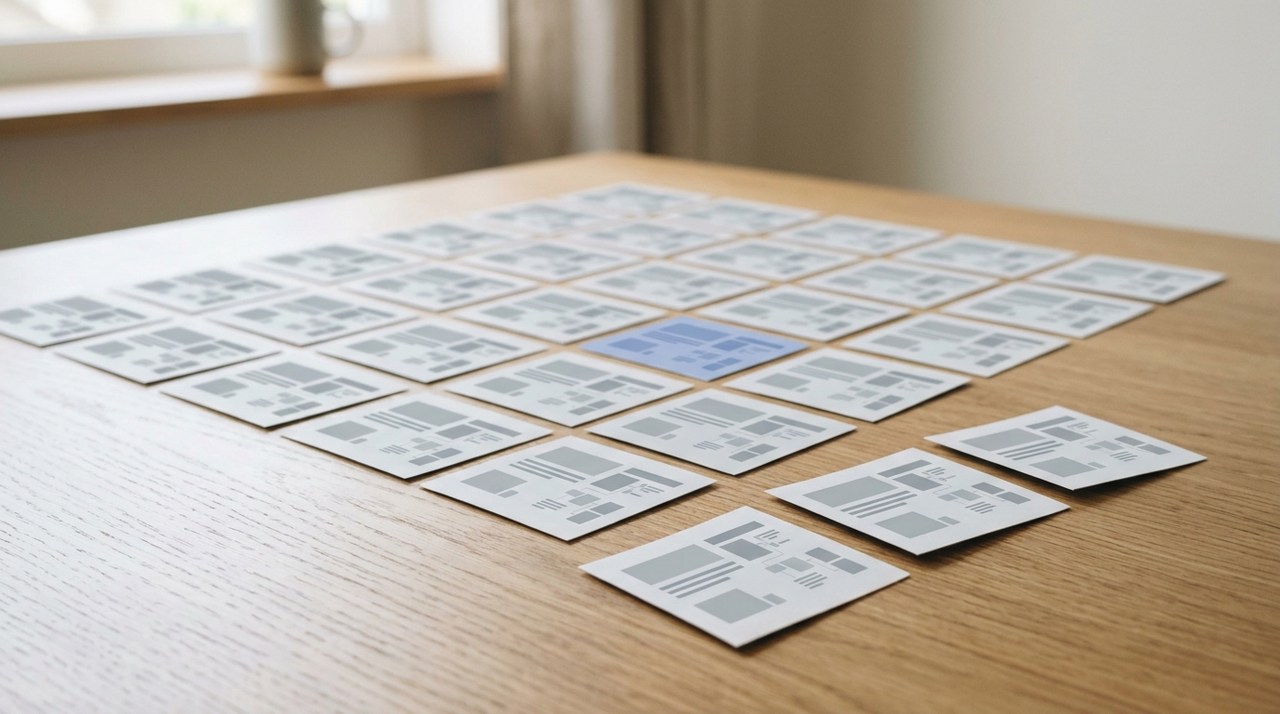
If your goal is to extract static pictures, you should process the image files directly and leave the source video untouched. This is how VideoDoc operates while saving every frame: it hashes each JPEG file during extraction and deletes it only if its exact byte content matches the previous saved image.
Checking for identical byte data might sound basic, but it works reliably here. ffmpeg renders every frame in a single run at a set quality level, and JPEG encoding produces identical output for identical input pixels. Matching file bytes guarantees that two images are visually identical, so discarding the extra file loses no visual detail.
The other half is what each picture gets compared against, and that is only the frame kept before it, never the whole folder. My frozen test shows why that matters. The 36 images came down to 3 kept, and only 2 of those 3 were different pictures. The third was the first slide coming back at the end, and it survived on purpose. A tool that hashes the whole folder and keeps one copy of each unique image would have deleted it, and your timeline would then say that slide was never shown again.
- Every saved file includes its exact timestamp in the file name, such as
frame_000123_00h01m45.50s.jpg. - The tool writes a
frames_index.csvfile listing each image and time, allowing you to see how long each slide stayed on screen by comparing consecutive rows. - The software displays a summary of skipped duplicate frames so you can confirm what was removed.
--keep-duplicate-frameson the command line turns it off when you want every copy.
Exact byte matching works only when the visual content remains completely still. It does not drop frames from camera video, and it removes almost nothing from screen recordings with a moving cursor, a running clock, or a blinking text cursor. It also requires frames to come from the same export run, so you cannot compare images generated with different quality settings.
Pull the frames from a video you already have.
Try the free browser version on a file you already have. When you want the whole video saved as timestamped pictures on your own computer at 1, 2 or 4 a second, duplicates dropped and a CSV index beside them, Pro is $19 once, lifetime, 2 machines.
Quick questions
How do I remove duplicate frames in ffmpeg?
Run the command ffmpeg -i input.mp4 -vf "mpdecimate,setpts=N/FRAME_RATE/TB" -an output.mp4. The mpdecimate filter removes frames that look like the one before, while the setpts filter resets the timeline timestamps to shorten the file. If you omit setpts, ffmpeg outputs a video with the original duration containing frozen frames.
Does removing duplicate frames reduce the quality?
Using the ffmpeg video method reduces quality slightly because the software decodes and re-encodes the video stream. Deduplicating a folder of extracted image files does not reduce quality, because the remaining image files are not re-compressed.
Why did duplicate removal not remove anything?
Movement on screen prevents frames from matching, and small items like a mouse cursor, a clock, or a text cursor are enough to disrupt the process. In my testing, a single 12 pixel white square prevented 33 out of 36 images from being detected as duplicates. You can fix this by lowering your extraction rate to one frame per second instead of using a different filter.
Will I lose a slide that comes back later in the video?
No, provided your tool compares each frame only to the previously saved frame. This preserves repeat views when a recording shifts from slide A to B and back to A. A utility that hashes the entire folder to eliminate global duplicates would delete the second view of slide A and distort your timeline sequence.
Pick a screen recording you have already reviewed, extract its frames tonight, and check how many images are identical. That count will show you which of the two jobs you actually have.

I am a telecom engineer and business analyst from Pakistan, and I build small honest desktop tools under Designesh. I made VideoDoc because I wanted my AI to read the lectures I study from. Everything here is tested on my own machine first.