How many frames are in a video, and how many you actually need
Multiply the frame rate by the length in seconds. A minute of video at 30 frames a second gives you 1,800 frames, and an hour gives you 108,000. An hour at 24 fps is 86,400 frames, and at 60 fps you get 216,000. This math usually gives a close answer. The exact number comes from counting them, and a free tool called ffprobe counts them for you in a fraction of a second.
You usually ask this right before you do something with those frames. You might want to pull pictures out of a recording or hand a video to an AI as images. Maybe a tool asks you how many frames to save. You just want to know if you will get fifty files or fifty thousand.
The count is always bigger than you expect. I checked this on my own screen recordings before I wrote this. A 51 second clip in a 7.4 MB video file turned into 3,085 pictures taking 518.6 MB when I saved every frame. That is about 70 times the size of the original video, and the clip was not even a minute long.
So there are really two questions here. The first is how many frames the video has. That is simple math, plus a free command if you need the exact number. The second is how many of those frames you actually need, and that choice saves almost all of your disk space.
How do you work out how many frames a video has?
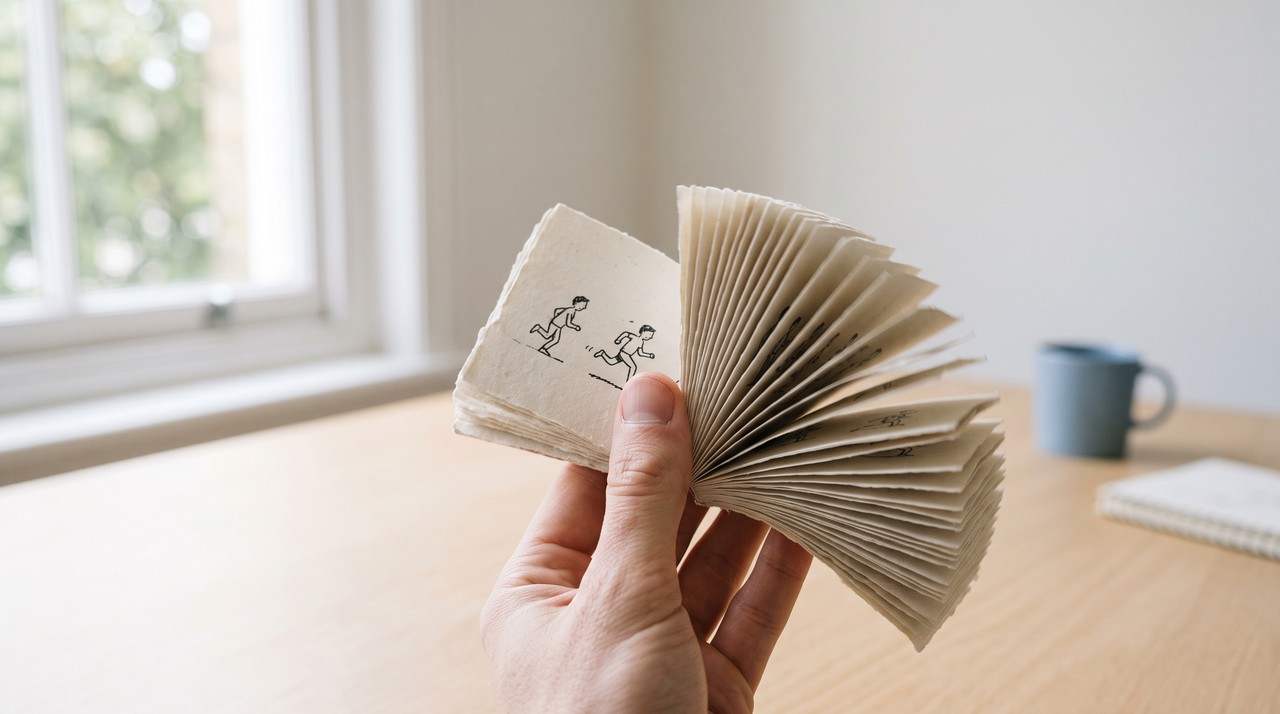
A video works like a very fast flipbook. The player shows a fixed number of still pictures one after another every second. Your eye blends these pictures into movement. That number is the frame rate, and you will see it written as fps, meaning frames per second.
The total count is just the frame rate multiplied by the length in seconds. A 10 minute video lasts 600 seconds. At 30 fps you multiply 600 by 30 to get 18,000 frames. Frames = frame rate times the length in seconds.
Films and most everyday videos run at 24, 25 or 30 fps. Gaming, sports and many screen recordings use 60 fps instead. This table shows what you get for common lengths. I added a final column for sampling at 4 a second, and I explain that part further down.
| Length | 24 fps | 25 fps | 30 fps | 60 fps | 4 a second |
|---|---|---|---|---|---|
| 1 minute | 1,440 | 1,500 | 1,800 | 3,600 | 240 |
| 10 minutes | 14,400 | 15,000 | 18,000 | 36,000 | 2,400 |
| 1 hour | 86,400 | 90,000 | 108,000 | 216,000 | 14,400 |
There is a small catch in the math. Some videos use the old North American TV rates of 23.976 and 29.97 instead of 24 and 30. These run 0.1% slower than the clean numbers. An hour at 29.97 gives you 107,892 frames, and that is 108 fewer than the clean math shows. That small gap matters if you need to match frame numbers to an editing timeline.
How do I find a video's frame rate and length on Windows?
You do not need extra software to get an estimate. Right-click the video file on Windows and open Properties. Go to the Details tab. An MP4 file lists the Length and the Frame rate right there, and you just multiply them.
Right-click a YouTube video while it plays and click Stats for nerds. Look for the line called Current / Optimal Res. It ends in something like @30 or @60, and that number is your frame rate. You can also see this in VLC by clicking Tools and opening Codec Information.
Why is the frame count sometimes wrong, and how do you get the exact number?
This math assumes two things. It assumes the length you see is the length of the picture track, and it assumes the frame rate never changes. Both of these assumptions can be wrong.
I tested an 8 minute OBS screen recording on my computer. The file showed 517.27 seconds at 30 fps, which means 15,518 frames. The real count was 15,452, so my math was 66 frames too high. A file gets its length from its longest track, and my audio track kept running for 2.2 seconds after the picture stopped. The video track by itself was 515.07 seconds. That exact length times 30 gives you the true 15,452 count.
The other issue is a variable frame rate. Phones and some screen recorders let the frame rate drift up and down while they record. This makes the number in Properties an average, so multiplying it only gives you an estimate.
You can get the exact number using ffprobe. This is a free file inspector that comes packaged with FFmpeg. You can install both on Windows by typing winget install Gyan.FFmpeg. Open a terminal and run one of these commands with your file name at the end:
- This is the fast count, and it reads the file without playing it:
ffprobe -v error -select_streams v:0 -count_packets -show_entries stream=nb_read_packets -of csv=p=0 video.mp4 - This is the slow count, and it decodes every single frame:
ffprobe -v error -select_streams v:0 -count_frames -show_entries stream=nb_read_frames -of csv=p=0 video.mp4
The fast count took under a tenth of a second on all four test files using my Ryzen 5 5600. The slow count took 23.7 seconds on the 8 minute recording, because it plays the entire thing to check it. Both commands gave me 15,452. The two counts matched exactly on all four files, so I use the fast command now. I only run the slow one if a number looks strange to me. You can read about both options in the ffprobe documentation.
You will probably run into one more thing. A quick header check using -show_entries stream=nb_frames prints N/A on MKV files. These files usually do not carry a frame count in their header. My 51 second MKV said N/A when I tried it, but the fast count command still gave me 3,085 right away.
Do you need every frame, or is 4 a second enough?
You rarely need all of those frames for anything you want to read. Each frame is on screen for a thirtieth of a second at 30 fps. Nearly every frame looks almost the same as the one before it, so saving them all mostly buys you copies of the same picture.
I settled on four frames a second for VideoDoc, and the reason is simple. A slide or a menu that you are meant to read stays on screen for more than a quarter of a second. Taking a picture every 250 milliseconds cannot miss it. For reading what is on screen, 4 a second is enough. That change turns an hour of 30 fps video from 108,000 frames into just 14,400.
This rule holds up well on long and fast footage. The 27 minute GTA 6 Extended Look turned into 6,418 frames at four a second.
You can do this sampling for free using FFmpeg. Running ffmpeg -i video.mp4 -vf fps=4 -q:v 3 frame_%06d.jpg saves four sharp JPEGs a second. Each file is numbered in order, and this matches the exact sampling and JPEG quality VideoDoc uses. The free method stops helping after the files land on your drive. The file names carry a number instead of the exact moment in the video. There is no index and no check for duplicates, so you have to work out the timestamps by hand.
How much disk space do video frames take?
This next part surprised me, so I decided to measure it instead of guessing. I saved frames from four real videos as JPEGs at that same quality, taking four a second. I also saved every single frame for two of those videos to compare.
| Video I measured | Length | Every frame | At 4 a second | Duplicates removed |
|---|---|---|---|---|
| OBS screen recording, 1080p at 60 fps, 7.4 MB file | 51 seconds | 3,085 frames, 518.6 MB | 206 frames, 34.7 MB | 1 |
| Premiere Pro lesson from a video course, 1080p at 23.976 fps, 49.9 MB file | 3 min 17 s | 4,727 frames, 659.6 MB | 789 frames, 110.3 MB | 7 |
| OBS screen recording, 1080p at 30 fps, 20.5 MB file | 8 min 35 s | 15,452 frames, not saved | 2,061 frames, 352.9 MB | 0 |
| OBS screen recording, 720p at 30 fps, 65.5 MB file | 1 min 27 s | 2,615 frames, not saved | 349 frames, 34.4 MB | 38 |
An average 1080p frame from a screen recording came out between 140 and 171 KB. A 720p frame was close to 100 KB. An hour at four a second gives you roughly 2 to 2.5 GB of pictures at 1080p, and about 1.4 GB at 720p. If you saved every single frame of an hour of 30 fps 1080p video, you would get somewhere around 15 to 18 GB. I would never save all of them unless I had a real reason.
Busy screens with a lot of text will run bigger than mine did. I have seen a sharp 1080p recording reach about 270 KB for a single frame. VideoDoc tells you how many images you are about to get per minute and per hour before it starts the job. It also weighs the real frames early on. This lets it warn you if the drive cannot hold them all, instead of failing hours later when it runs out of space.
Removing duplicates did much less than I expected on my test recordings. VideoDoc only drops a frame when its bytes are identical to the one before it. Something almost always differed between two pictures a quarter of a second apart on my screen recordings. The tool removed 0 frames out of 2,061 on the longest video. Checking for exact bytes is safe and never throws away a real change. It just will not shrink a normal screen recording very much. It really only helps when the picture is completely frozen.
Know the count before you save a single frame.
Try the free browser version on a file you already have. When you want every frame at 1, 2 or 4 a second, each one named by the moment it came from and listed in a CSV, Pro is $19 once, lifetime, 2 machines.
Quick questions
How many frames are in a 1 minute video?
A 1 minute video has 1,800 frames at 30 fps. It has 1,440 frames at 24 fps, and 3,600 frames at 60 fps. Sampling at four a second instead gives you 240 pictures.
How many frames are in an hour of video?
You get 86,400 at 24 fps, 108,000 at 30 fps and 216,000 at 60 fps. It is 107,892 frames at the 29.97 rate that a lot of camera and TV footage uses. If you saved all 108,000 as 1080p JPEGs, it would take somewhere around 15 to 18 GB of space.
Why does ffprobe say N/A for the number of frames?
The quick check tries to read a frame count stored in the file's header. MKV files usually do not store a frame count there. You can count the packets instead with the -count_packets option and read nb_read_packets. That command took under a tenth of a second on my test files.
Check the frame rate and do the multiplication before you pull the pictures out of a video tonight. After that you can decide how many of those frames you actually need. The answer is almost never all of them.

I am a telecom engineer and business analyst from Pakistan, and I build small honest desktop tools under Designesh. I made VideoDoc because I wanted my AI to read the lectures I study from. Everything here is tested on my own machine first.