How to extract slides from a recorded webinar
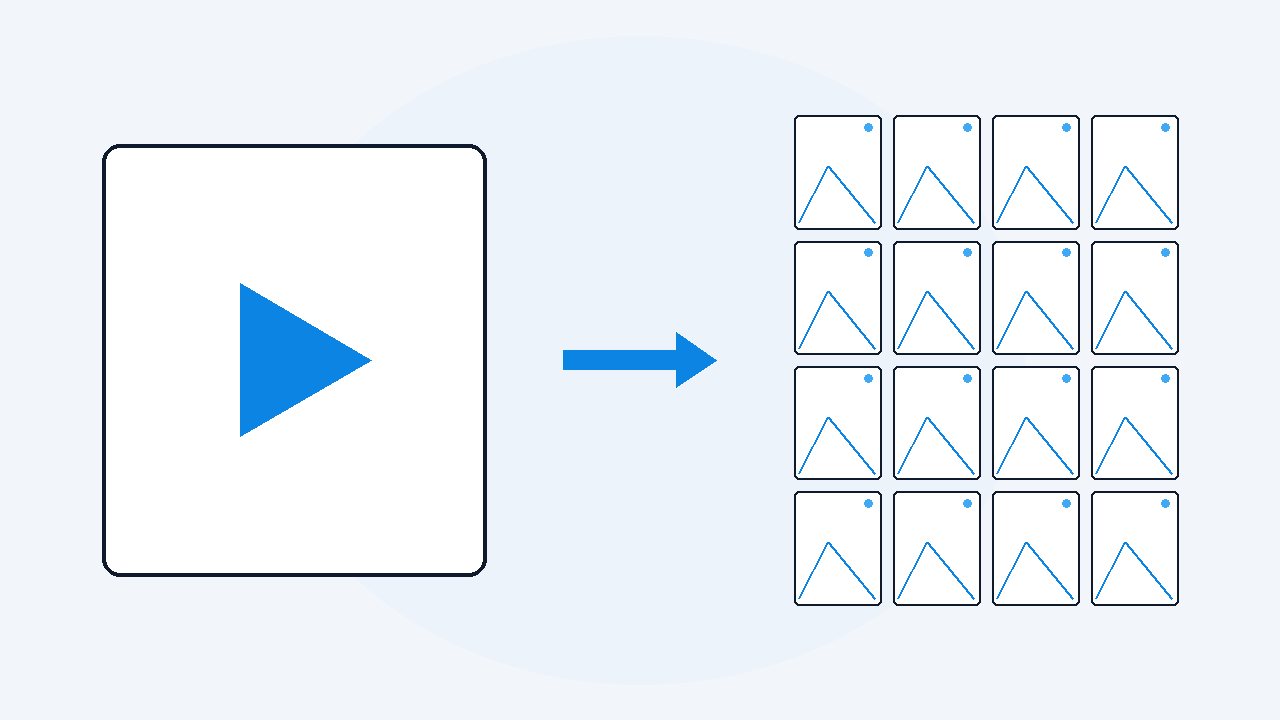
A recorded webinar gives up its slides if you sample the video as images and keep the frames where the screen changes. VideoDoc does this on your own computer: point it at the recording, it saves the screen as timestamped JPEGs with pixel identical repeats dropped, and it writes a CSV that maps each image back to the exact moment it was on screen. You get pictures of the slides, not an editable PowerPoint.
You sat through the webinar, the slides had the one number you actually needed, and nobody ever sent the deck round. All you have is the recording. You can get those slides out as images without uploading the recording anywhere. The confusion is that almost every tool sold for this job is an online converter that wants your file first, and a client webinar is often the exact file you are not allowed to hand over.
It helps to know what a webinar recording actually is. The platform did not save the deck. It saved a video of a screen, and it has usually pasted the presenter's webcam tile, and sometimes the chat panel, into that same picture. So the slides are in there as pixels, mixed in with everything else that was on screen at the time.
Do you already have a clean slides only recording?
Ask this before you extract anything, because it can save you the whole job. Zoom can record the shared screen as its own separate file, on top of the normal speaker view recording, so when the host had that setting on there is a second video that shows nothing but the slides. That file has no webcam tile, no chat panel and no sidebar in it. If the host has it, ask for the shared screen file and use that one.
The setting lives in Zoom's cloud recording settings and it has to be switched on before the webinar starts, so most of the time it will not exist and the host will not know what you are asking about. That is fine, because the composited recording works too and just gives you a bit more to throw away.
Why is a webinar recording harder than a normal video?
The first problem is the burned in layout. The webcam tile, the chat panel and the platform's toolbar are part of the picture now, so every slide image you pull out carries them on top. You can cover a face with solid black. You cannot remove a chat panel, because there is nothing behind it to recover.
The second problem is animated slides. A presenter who reveals one bullet at a time is showing six genuinely different screens for what he calls one slide, so you get the partial versions as well as the finished one. The build order is often worth keeping, but the folder does end up bigger than the deck was.
The third problem is duplicate removal, and it is the one that costs people a wasted run. Duplicate removal drops an image that is a pixel for pixel copy of the one before it, which on a still slide deck throws away most of the pile. But a composited webcam tile means the presenter is moving, so almost no two frames are identical and almost nothing gets dropped. On a webinar recording with a live webcam tile, sample at 1 a second, not 4.
Is there a free way to get the slides out?
Yes, and it costs nothing but your evening. VLC will save whatever frame is on screen as an image file, and you drive it yourself.
- Open the recording in VLC. In Tools, Preferences, Video you can set the snapshot format to PNG, which keeps slide text sharper than JPEG.
- Play it and press Shift and S every time the slide changes. On a Mac it is Command, Alt and S.
- The images land in your Pictures folder, which is where VLC saves snapshots unless you change it.
- Rename them afterwards, because the filename carries the clock time you pressed the key, not the moment in the video.
For a 15 minute product demo I would still do it this way. On a 70 minute webinar it falls apart. I tried it once and missed a slide that was up for about eight seconds while I was writing something down, and because the filenames were my laptop's clock I could not tell afterwards which slide belonged to which minute. VLC can also run its scene video filter and save frames on its own, but the filter does not know what a slide is, so an hour of webinar leaves you thousands of near identical images to sort by hand.
How do you pull the slides out on your own computer?
This is what I built VideoDoc for, so read the next part knowing that. It opens the recording on your own machine, saves the screen as timestamped images, and never sends the file anywhere. A webinar recording is usually a file already sitting in Downloads, which is the case it handles best.
- Every frame as images is the one you want when the slides are the point. Choose 1, 2 or 4 samples a second, point it at the recording, and it writes numbered JPEGs named by the exact moment each one came from, with pixel identical repeats dropped.
- A document for AI is the one you want when you need the slides and the words together. It picks the screen frames rather than the face frames and places each one beside what was said over it, as a PDF and a Markdown file.
- Either way, turn on the option that fills every face with solid black if the webcam tile is in shot and these images are going near a client.
The app tells you how many images your sampling rate means per minute and per hour before it starts. An hour at 4 a second is about 14,400 images. At 1 a second it is about 3,600, and for slides that is plenty, because a slide sits on screen for half a minute.
The part I use most is the CSV index that lands beside the images. Every row is one image and the exact moment it was on screen, so you can say the revenue chart was the slide at 47 minutes and anyone can go and check it. It is also how you send a question back to the presenter without making him watch his own webinar again.
What do the online video to slides converters do that this does not?
They give you an editable PowerPoint, and that is a real thing to want. Tools like CopySlides and VideoToSlides read the text off each captured frame and rebuild it as slides you can type into. VideoDoc does not do that. It gives you pictures of the slides plus a PDF and a Markdown file, and the text comes either from your AI reading the image or from the transcript.
| What you want | Online video to slides converters | VideoDoc |
|---|---|---|
| An editable PowerPoint file | Yes, that is the whole point of them | No. Images plus a PDF and Markdown |
| The recording stays on your machine | No, you upload it first | Yes, nothing is uploaded |
| Length of recording accepted | CopySlides publishes a two hour cap and asks you to split anything longer | No length limit on the desktop app |
| The presenter's face in the slide images | Whatever the recording showed | Can be filled with solid black, in the images and in the document |
| The spoken words lined up with the slides | Varies by tool | A timestamped transcript beside each screen in the document |
| Which minute each slide came from | Varies by tool | A CSV row per image with the exact moment |
| Works with no internet | No | Yes, it runs on your own machine |
So the honest split is simple. If you need to edit the slides, use a cloud converter and accept the upload. If you need the slides but cannot upload the recording, do it locally.
VideoDoc gives you images of the slides, not an editable deck, and it does not turn slide text into text boxes you can type into. It cannot recover a slide the recording never showed, so if the platform saved speaker view only and cut to the presenter's camera during a slide, that slide is gone. The chat panel and the attendee sidebar cannot be removed, only the faces. And the free browser version on this site does the transcript and not the frames, so the slides come from the desktop app.
Try it on a recording you already have.
The free browser version gives you the transcript. For the slides as images, the CSV index and the face blackout, Pro is $19 once, lifetime, 2 machines.
Quick questions
Can I get the actual PowerPoint file from a webinar recording?
Not from the recording itself, because the platform saved a video of a screen and not the deck. An online converter can rebuild editable slides by reading the text off each frame, and a local tool like VideoDoc gives you the slides as sharp images instead. Asking the host for the real file is still the fastest route.
How many images does an hour long webinar produce?
About 3,600 at one sample a second, or about 14,400 at four a second, before duplicates are dropped. On a webinar with a live webcam tile very few frames are pixel identical, so plan for close to the full count and sample at one a second.
How do I remove the presenter's webcam from the extracted slides?
You cannot remove it, because the platform pasted it into the picture and there is nothing behind it. You can fill the face with solid black, which VideoDoc does in the images and in the document. The cleaner answer is Zoom's separate shared screen recording, which never had the webcam in it.
Is it safe to upload a client webinar to an online slide extractor?
That depends on your contract rather than on the tool, and for an internal or client webinar the answer is usually no. Extracting the slides on your own computer avoids the question, because the file never leaves the machine.
Find the webinar recording still sitting in your Downloads folder and pull its slides out tonight, before the host's cloud recording expires.

I am a telecom engineer and business analyst from Pakistan, and I build small honest desktop tools under Designesh. I made VideoDoc because I wanted my AI to read the lectures I study from. Everything here is tested on my own machine first.