How to extract the text shown on screen in a video, not just what is said
A transcription tool only turns speech into text. Captions, slides, code and labels that show up on screen will never appear in its output. To get on-screen text out, you need to save the video frames as images first, then run an OCR tool on them or pass them to an AI that reads pictures. If you just need a single moment, pause the video and use Live Text on Mac or Text Extractor on Windows.
You might have a video where the key details are written instead of spoken. This happens with muted product demos that use captions, lectures where all numbers are on slides, or programming tutorials where the instructor types without reading the code out loud. When you run a video like this through a transcription tool, the text you actually need is missing.
A transcript listens to the audio and never checks the screen, so you must work from images to get on-screen text. Every video is made of still pictures called frames. To get words out of those frames, a tool has to read them. That job takes either standard OCR software or an AI model that can process images.
Why doesn't a transcript include the text on screen?
Transcription relies on speech recognition. The software listens to the audio track and types out what it hears, so it never looks at the video picture. Even advanced models like OpenAI's Whisper only process audio, and they open a video file just to extract its sound.
Extracting text from a screen requires optical character recognition, or OCR. This is software that looks at a picture and types out the letters it finds inside it. A video file has no real text layer like a Word document, only pixels shaped like letters, and OCR scans those pixels to turn them into real text.
I learned this when I ran my own transcription setup on a silent screen recording. It was a walkthrough of a settings panel, but my output file came back almost empty because no one spoke. The useful information lived entirely in the menu names and input fields on screen, and none of it was in the audio track.
What are the ways to get text off a video screen?
The right approach depends on whether you need a quick snippet or an entire video. Here is how the main methods compare.
| Method | Covers | Where it runs | Where it stops |
|---|---|---|---|
| Pause, then Live Text (Mac) or PowerToys Text Extractor (Windows) | One frame at a time | Your computer | You have to find and pause every moment yourself |
| Screenshot, then Snipping Tool text actions (Windows 11) | One frame at a time | Your computer | One screenshot per moment, by hand |
| Online video OCR sites | The whole video | Their servers | The file leaves your computer |
| ffmpeg plus Tesseract | The whole video | Your computer | Command line, and the same slide gets read again in every frame |
| Frames saved as images, then read by an AI | The whole video | Frames on your computer, reading in the AI you pick | The AI can misread small or blurry text |
If you need a single line of text, built-in system utilities are the fastest choice. On a Mac running macOS Ventura or newer, pause the video in the Photos app and highlight the text as you would in a photo, which is detailed on Apple's Live Text help page. On Windows, the free PowerToys utility includes Text Extractor, which lets you drag a box over any paused screen to copy its text.
How do I extract all the text from a whole video for free?
To extract text from an entire video, you split the process into two steps. You save the video frames as image files first, and then you run OCR across every image. You can do this for free on your computer using ffmpeg to extract the frames and Tesseract to read the text. Both are command-line tools that run inside your terminal application.
- Make a folder called frames next to the video.
- Run
ffmpeg -i video.mp4 -vf fps=1 frames/%05d.pngto save one picture for every second of video. - On Windows, run
for %f in (frames\*.png) do tesseract "%f" "%~dpnf"in Command Prompt. On a Mac, runfor f in frames/*.png; do tesseract "$f" "${f%.png}"; donein Terminal. - Open the frames folder. Each picture now has a .txt file beside it with whatever text Tesseract found.
This setup works without extra costs, but it creates practical issues. If a slide stays on screen for five minutes, you get 300 identical text files, one for every second. Tesseract is also tuned for clean document scans, so small captions on patterned backgrounds or blurry compressed text often turn into garbled characters.
Sampling rates cause timing issues as well. If you extract one image per second, a quick caption that appears for half a second can land between frames and get skipped entirely. Extracting more frames per second fixes the missed text, but it multiplies the total file count and duplicate output.
How does VideoDoc get the on-screen text to an AI?
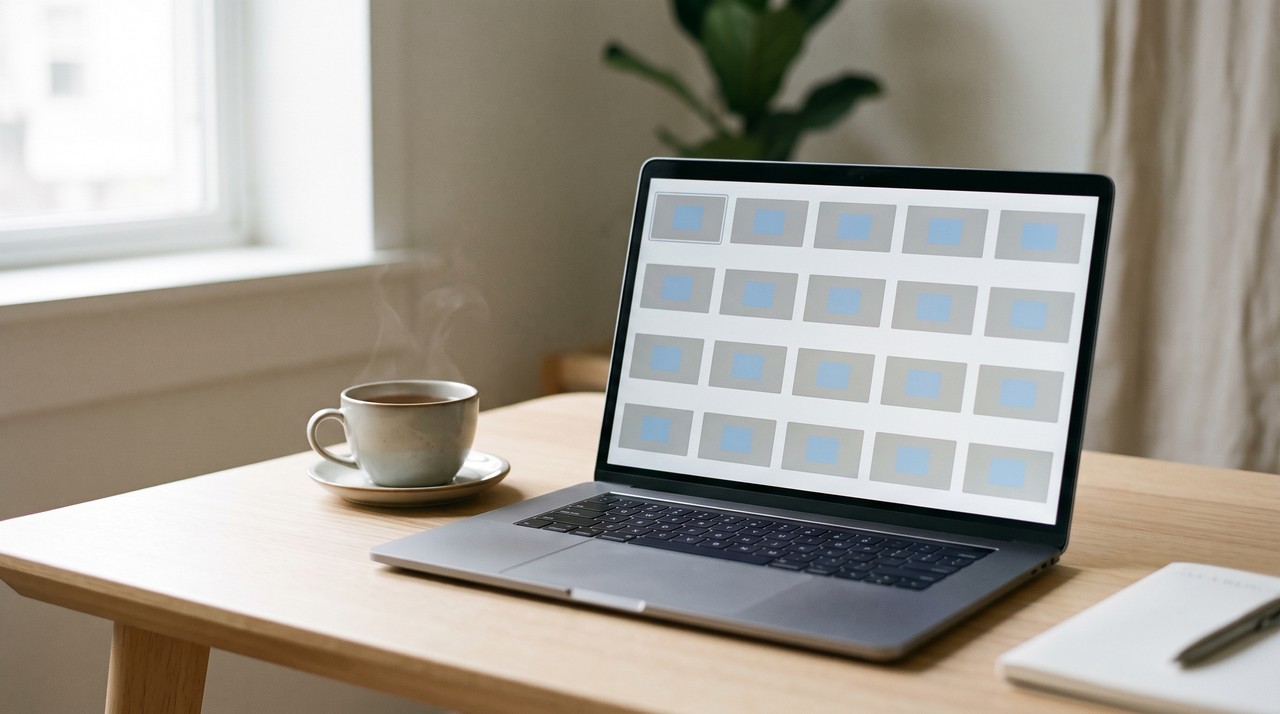
I built VideoDoc to handle the image extraction side of this process without terminal commands. When you pick "Every frame as images" and input a video link or file, it extracts image frames at 4 a second, 2 a second or 1 a second. At the 4-per-second setting, it saves a frame every quarter of a second, so any text that stays visible that long ends up in the folder.
The tool then checks the images and drops any frame that matches the previous one pixel for pixel. This solves the problem of 300 identical files, because a static slide is saved once until something on it changes. Each image uses its timestamp as a filename, and an index file in CSV format lists every entry so you can link text lines back to exact seconds in the video.
VideoDoc extracts the frames, but it does not perform text recognition itself. You pass the resulting images to a vision-capable AI model like ChatGPT or Claude and ask for a timestamped text extract. If you need spoken words as well, document mode places transcripts next to matching screenshots in a single PDF. It selects screenshots based on visual content to favor slides over speaker video, and Best quality fetches the video at 1080p so smaller fonts remain readable.
AI vision features come with input limits. Claude limits uploads to 20 images per prompt on claude.ai, as listed in Anthropic's vision documentation, so removing duplicate frames helps fit longer videos into a chat window. If your project exceeds image limits, group the ordered frames into a single PDF before uploading.
VideoDoc cleans up image sets, but it has no native OCR capabilities, meaning you still need an external AI or OCR engine to produce text. Any reader, OCR or AI, can confuse a zero with the letter O on low-resolution text, so you should double-check technical values and code against original screenshots. The tool cannot sharpen low-resolution source video, and web links must point to public videos.
Try it on a video where the words are on the screen.
Free to try on your own computer. Pro is $19 once, for two machines.
If you are trying to pull source code out of tutorials, I wrote a dedicated guide on extracting code from a video tutorial. You can also read my guide on how many frames are in a video to calculate total image output size before processing.
Quick questions
Can ChatGPT read text from a video?
The reliable way is to supply image frames directly. Save the video frames, attach them or a combined PDF file, and prompt the model to extract the text along with timestamps. Check small numbers manually, because vision tools can misread characters on compressed images.
Does a transcript include on-screen text?
No. Transcripts process audio tracks only, so on-screen captions, slides and code are ignored unless spoken aloud. You need OCR or a vision AI model to process the video frames.
What is the best free OCR for a whole video?
On a local machine, using ffmpeg for frame extraction and Tesseract for text recognition is the standard free approach. For a single paused frame, Live Text on macOS or PowerToys Text Extractor on Windows works faster.
How many frames per second do I need to catch on-screen text?
One frame per second works well for long-standing slides. On-screen captions require higher rates, and setting 4 frames per second catches elements visible for a quarter second or more. Deduplicate your frame set afterward to prevent redundant files.
Find the video with on-screen text you need, extract its frames tonight, and run them through your AI tool.

I am a telecom engineer and business analyst from Pakistan, and I build small honest desktop tools under Designesh. I made VideoDoc because I wanted my AI to read the lectures I study from. Everything here is tested on my own machine first.