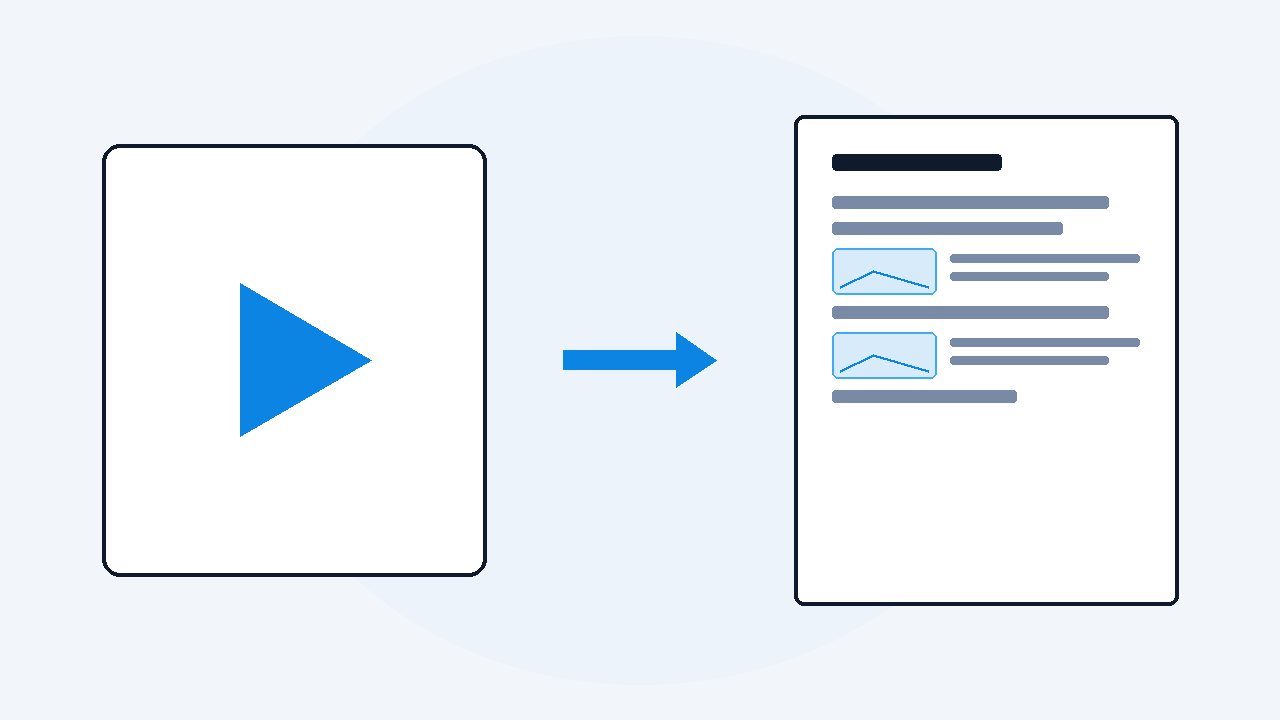
How to turn a YouTube video into a document
For a quick job, open the video on YouTube, click the three dots under it, choose Show transcript, then copy and paste the text into a file. For a document you will actually keep and use, VideoDoc turns the link into one PDF with every word timestamped plus the on-screen slides and code saved as images, built entirely on your own computer. There is a free browser version for files you already have.
- Quick job: click Show transcript under the video, copy the panel, paste it into a file.
- Your own file, words only: the free browser version transcribes it on your machine with nothing uploaded.
- Lectures and tutorials: VideoDoc Pro builds one PDF with timestamped words plus the slides and code as images.
I study from YouTube almost every day. Courses, lectures, tool walkthroughs. And for years my "notes" were the same sad thing: rewatch the video, drag the timeline, pause, squint, type, lose the spot, drag again. One evening I spent twenty minutes hunting inside a 3 hour lecture for one formula the teacher had shown for maybe eight seconds. That was the day I started building VideoDoc, because a video is a terrible place to store knowledge you plan to come back to.
A document fixes that. You can search it. You can quote it. You can hand it to ChatGPT or Claude and ask questions, which you cannot do with a video, because no AI chat can actually watch one. So here are the three real ways to make that document, from free and rough to paid and clean.
Way 1: the free transcript button
YouTube already has a transcript for many videos.
- Under the video, click the three dots, then Show transcript.
- A panel opens with every line and its timestamp.
- Select it all, copy, paste into a Google Doc or a text file, and you have a document of sorts.
Check: For a lecture or tutorial it throws away half the video.
I use this way when I need one quote fast. But it has honest problems. Many videos have no captions at all, which is when you need a way to get the transcript without captions, and auto captions mangle technical words, names and anything not spoken in clear English. You get a wall of broken lines with no headings and no structure. And the biggest one for me: everything shown on the screen, the slides, the code, the diagrams, is simply gone. For a talking head interview that is fine.
Way 2: transcribe it free in your browser
If the video is a file you already have, you can skip YouTube entirely.
- The free VideoDoc browser version takes a video or audio file, transcribes it with AI on your own machine, and gives you the text as .txt or .md.
- Nothing uploads anywhere, so it costs nothing to run and your file stays yours.
- No signup, no card.
Check: It exists so you can feel what a clean transcript is like before spending anything, and I explain how a browser transcribes a video without uploading it in its own guide.
The limits are printed right on it: it is for your own files, not links, it does not capture screenshots, and it suits shorter videos best.
Way 3: one clean document with the slides included
This is the way I built for myself.
- Paste the link and press Start. It downloads the video from your own home connection, which matters because YouTube routinely blocks the data center IPs cloud tools use.
- Your machine transcribes every word with timestamps, using your graphics card when it can. No minutes metered, no monthly bill, because the hardware is yours.
- It watches the picture too.
Check: When the video shows a screen share, the captures follow the slides and the code rather than the speaker's face, and Best quality saves them at full HD so the text inside stays readable.
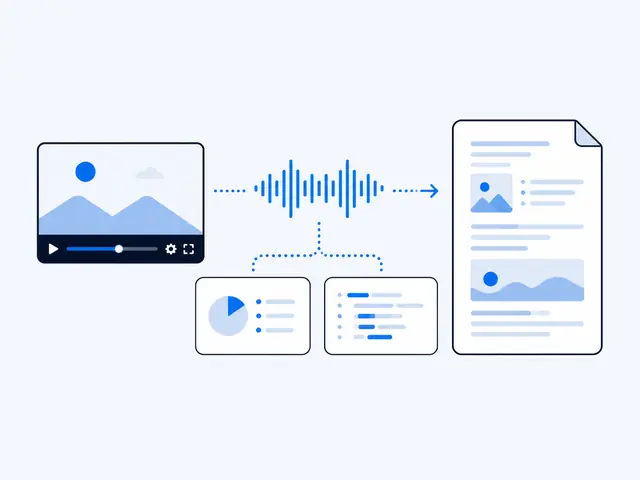
VideoDoc Pro takes a YouTube link, a single video or a whole playlist, and does the entire job on your computer. The result is one PDF plus a Markdown copy: a timestamped transcript with the on-screen content placed as images where it happened. Drop that file into ChatGPT, Claude or NotebookLM and ask anything. For a playlist you choose one merged document or one document per video.
The first document I ever built with it was that same 3 hour lecture. The formula I once hunted twenty minutes for now takes one Ctrl+F. That single search sold me on my own tool.
Which way should you pick
Match your situation to the best way, and to what it costs.
- One quote from a captioned video: Show transcript button (free)
- A file on your disk, words only: Free browser version (free)
- Lectures, tutorials, anything with slides or code: VideoDoc Pro ($19 once, lifetime)
- Whole playlists and long videos: VideoDoc Pro (same $19, no limits)
Check: You know which of the three ways fits the video in front of you.
One honest note. If your video is only a person talking with nothing on screen, a plain transcript may be all you need, and way 1 or way 2 will serve you fine. Pro earns its money the moment the screen starts carrying information.
Your first document takes about two minutes.
Start free in your browser with a file you already have. When you need YouTube links, playlists and the slides captured, Pro is one payment of $19, lifetime, on up to 2 machines, with a 30 day money back guarantee.
Quick questions
Can I turn a YouTube video into a document for free?
Yes. If the video has captions, open Show transcript under the video, copy the text and paste it into a file. For your own video files, the free VideoDoc browser version transcribes them on your machine without uploading anything.
How do I keep the slides and code from the video, not just the words?
A transcript alone drops everything shown on screen. VideoDoc Pro captures the on-screen content as images, the slides and code rather than the speaker's face, and places them inside one PDF with the timestamped words.
Does the video get uploaded to a server?
Not with VideoDoc. The download, the transcription and the screenshots all happen on your own computer. Your own local files work fully offline.
If you only do one thing today, take the video you keep rewatching and turn it into a document with any of the three ways above. Once you Ctrl+F your first lecture, you will not go back.

I am a telecom engineer and business analyst from Pakistan, and I build small honest desktop tools under Designesh. I made VideoDoc because I wanted my AI to read the lectures I study from. Everything here is tested on my own machine first.