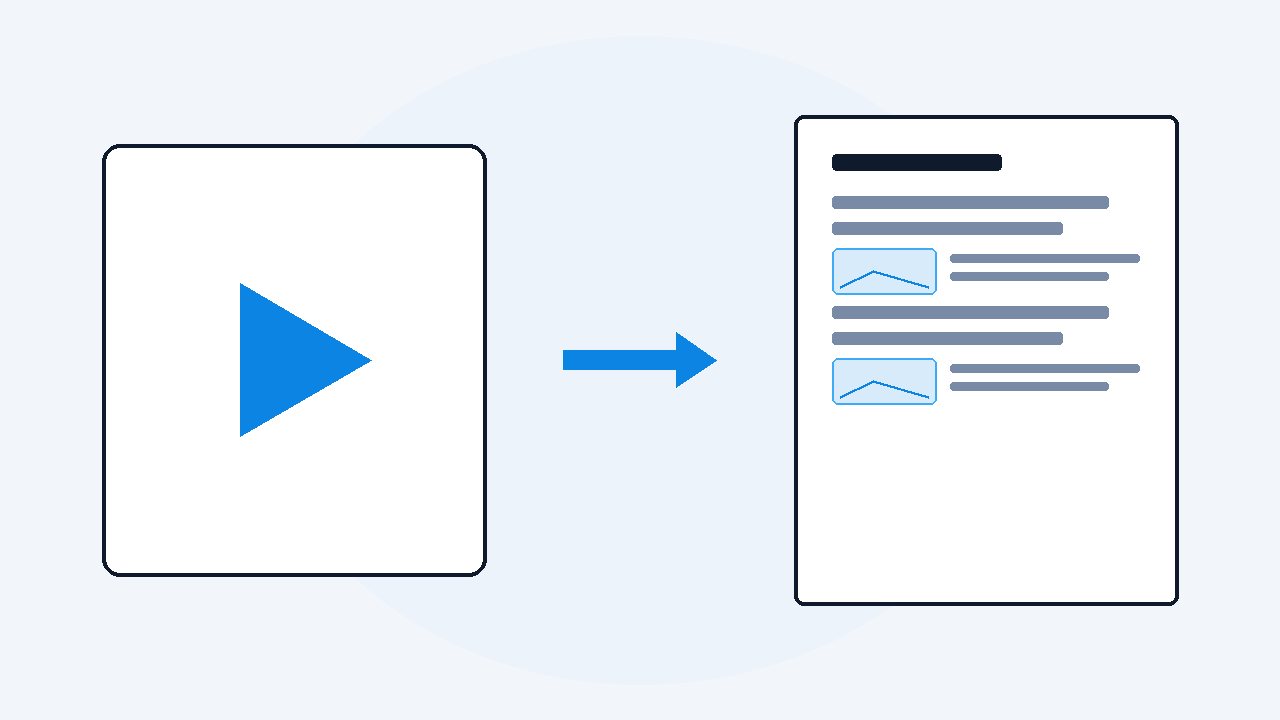
Turn a video into a PDF with screenshots your AI can read
A video becomes a PDF with screenshots in two layers: the spoken words as timestamped text, and the screen captured as images placed where they happened. The layer that decides whether your AI can read it is resolution. Screenshots get downscaled again on the way into the model, so capture at 1080p or better and never let a converter shrink them.
PDF is the format everything accepts, which is why people keep asking for it. Your AI reads it, your phone opens it, nobody can break the layout on the way to a colleague. The trouble is that a video PDF has two layers, and most tools only do one of them well.
The words are the easy layer. The screen is the one that goes wrong, and it goes wrong quietly. The PDF looks fine on your monitor at 30 percent zoom, and then your AI reads a slide and answers with words that were never on it.
How do you turn a local video into a PDF for free?
There is a free path and it is worth knowing, because for a short clip it beats installing anything new. You need ffmpeg, which is one free program, and Windows already has the second half built in.
- Put the video in a folder and open a terminal in that folder.
- Run
ffmpeg -i lecture.mp4 -vf fps=1/30 -q:v 2 shot_%04d.jpg. That saves one full size frame every 30 seconds at high JPEG quality. - Select the images in File Explorer, right click, Print, and pick Microsoft Print to PDF.
- You now have a PDF of the screen, one image per page, in order.
The image numbers are your timestamps: shot_0007 is three minutes in, because each step is 30 seconds. On a Mac, Preview does the same job. Open the images, select all, and export as a single PDF.
Where it stops. There is no transcript, so half the meaning is missing. There is no duplicate removal, so a 40 minute talk held on one slide gives you 80 pages of that slide. And 30 seconds is a coarse net, so a command typed and cleared in ten seconds is simply gone. Tighten it to fps=1/5 and the page count goes up six times.
Why can the AI not read the screenshots in your PDF?
Because the picture you see is not the picture the model gets. Every vision model resizes an image down to a fixed budget before it reads a word, and a screenshot of a slide is mostly small text, which is exactly what does not survive being shrunk.
The numbers are published. Anthropic's vision documentation says Claude reads images in 28 by 28 pixel patches, with a long edge limit of 1568 pixels on standard models and 2576 on the newer high resolution tier. OpenAI's image guide says its tile based models scale the shortest side down to 768 pixels.
| Screenshot you feed in | Standard Claude reads | Tile based GPT reads | Slide text after that |
|---|---|---|---|
| 3840 x 2160 (4K) | 1456 x 819 | 1365 x 768 | Fine, but you paid in disk and time for pixels that got thrown away |
| 1920 x 1080 (1080p) | 1456 x 819 | 1365 x 768 | The practical floor for code, terminals and dense slides |
| 1280 x 720 (720p) | Not resized | Not resized | Nothing is taken away, but there was less there to begin with |
| 854 x 480 (480p) | Not resized | Not resized | The model is guessing at small text, and it will not tell you |
Two things fall out of that table. Above 1080p you gain very little for a PDF headed to an AI, because the long edge gets capped anyway. Below 1080p nothing you do afterwards brings the detail back, because those pixels were never recorded.
What resolution do the screenshots actually need to be?
There is no single number, because it depends on how small the text was on the original screen. A slide with 40 point headings survives 720p easily. A 12 point terminal on a 4K desktop, recorded at 720p, does not.
So use two checks instead of a number, and do both before you send anything.
- Open one screenshot on its own at 100 percent zoom. If you cannot comfortably read the smallest text on it, the model cannot either, and it will guess rather than say it could not see.
- Open the finished PDF and zoom to 400 percent on a slide. If the text turns to mush straight away, the converter shrank the image before embedding it, whatever the page size claims.
That second check catches the most common failure of all. A PDF page size is a printing instruction. The picture inside keeps its own pixel grid, so a 640 pixel wide capture stretched across an A4 page is still 640 pixels of information, and the white space around it changes nothing.
Anthropic's own guidance says the same thing from the other direction: keep text legible, expect resizing to make small text worse, and watch heavy JPEG compression, because it can make text hard to read. It also warns that Claude can make mistakes on very small images under 200 pixels.
I learned this on my own recording. My screen recorder was set to 720p to save disk, and the PDF looked fine at a glance. Zoomed in, the terminal in it was a grey smear, and when I asked about that step I got an answer that sounded right and was not on the screen at all. I recorded the same walkthrough again at 1080p and the job worked first time.
How does VideoDoc build the PDF from a file on your computer?
VideoDoc has a Local tab. You point it at a file already sitting on your drive, no link and no upload, and it builds the document on your own machine.
- Open VideoDoc, choose the Local tab, and pick your video file.
- Set quality to Best, which keeps the screenshots large and sharp instead of small and quick.
- Press Start. It transcribes on your CPU or graphics card and watches the picture as it goes.
- You get a PDF and a matching Markdown file in the same folder.
The part that matters here is which frames it picks. When a video mixes a person on camera with a screen share, every frame is scored for content, text and code and diagrams against a face, and the screen wins. Identical slides collapse to one, so a 40 minute talk on one deck does not become 80 copies of slide four.
It can also black out faces, both in the frames folder and in the screenshots inside the document, which is the version you need if the recording is going anywhere near a privacy review. There is a whole page on why solid black beats blurring if that is your situation.
Is the PDF or the Markdown file better for an AI?
Honestly, the Markdown usually is. It lands beside the PDF with the images in a folder next to it, and most AI tools handle plain text plus separate image files more reliably than images buried inside a PDF.
Use the PDF when a person has to read it too, or when the tool you are pasting into accepts only one file. Use the Markdown when the only reader is a model, or when your notes live in Obsidian or Notion. Both come out of the same run, so you do not have to choose in advance.
VideoDoc cannot add pixels that were never recorded. If your source file is 480p, the screenshots are 480p, and no setting fixes that; the fix is at recording time. Best quality also means bigger files and a longer job. And the free browser version is transcript only: it does not build screenshots into a PDF, so this workflow is the desktop app.
Make the PDF from a video you already have.
The browser version is free and gives you the transcript. The screenshots inside the PDF are the desktop app: $19 once, lifetime, 2 machines, Windows and Apple Silicon Mac, 30 day money back guarantee.
Quick questions
Can I convert a video to PDF without uploading it anywhere?
Yes. VideoDoc reads the file straight off your drive and builds the PDF on your own machine, so nothing leaves the computer. The free ffmpeg route in this article is fully local too.
What resolution should the screenshots in the PDF be?
1080p on the long edge is the practical target. Vision models cap the long edge somewhere around 1456 to 1568 pixels anyway, so going higher buys little, and going lower loses small text for good.
Why does my AI get slide details wrong from a PDF?
Almost always because the screenshot was too small by the time the model read it. Open that image at 100 percent zoom, and if you cannot read the smallest text on it, the model is guessing as well.
Does the PDF include timestamps?
Yes. VideoDoc timestamps the transcript and places each screenshot beside the words spoken over it. In the free ffmpeg route your timestamp is the file number multiplied by the sampling interval you chose.
Take the screen recording you already have, build one PDF from it tonight, and zoom to 400 percent on the first slide before you send it anywhere.

I am a telecom engineer and business analyst from Pakistan, and I build small honest desktop tools under Designesh. I made VideoDoc because I wanted my AI to read the lectures I study from. Everything here is tested on my own machine first.